
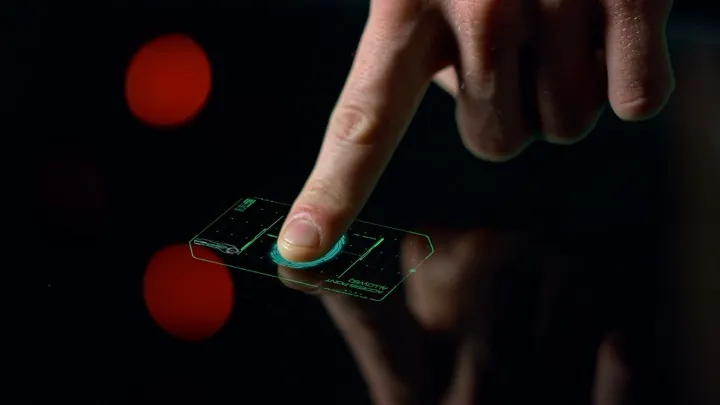
Your vault is encrypted with AES-256-GCM, protected by a master password derived through Argon2id. That is serious security. But typing a 20-character passphrase every time you want to peek at an API key gets old fast. Biometric unlock in Claspt gives you the speed of a fingerprint scan without weakening the cryptography underneath. Here is how it works, what the three modes do, and why your biometric data never touches your secrets directly.
The Convenience vs. Security Balance
Every password manager faces the same tension: make the vault easy to open and you risk exposure; make it hard to open and people stop using it. The industry answer is biometric authentication — let the hardware on your device verify that you are you, then release the encryption key automatically.
Claspt takes this approach but gives you fine-grained control over how much trust you place in biometric. You are not locked into a single mode. You choose how far the biometric shortcut extends — from completely disabled to full vault unlock.
Supported Biometrics by Platform
Claspt uses the native biometric APIs on each platform. There is no custom fingerprint reader, no camera-based face scan built into the app. Claspt delegates to the operating system, which delegates to the secure hardware on your device.
Platform          Biometric Method          Hardware
──────────────────────────────────────────────────────────────
macOS             Touch ID                  Secure Enclave (T2/M-series)
Windows           Windows Hello             TPM 2.0 + IR camera / fingerprint
Linux             Fingerprint (fprint)      USB / built-in sensor
iOS               Face ID / Touch ID        Secure Enclave (coming soon)
Android           Fingerprint / Face        TEE / StrongBox (coming soon)
If your device does not have biometric hardware, the biometric settings are hidden in Claspt's preferences. No hardware, no option — no misleading toggles.
The Three Biometric Modes
Claspt offers three biometric configurations. Each one represents a different point on the convenience-security spectrum.
Mode 1: Disabled — Password Only
Biometric is completely off. Every vault unlock requires your full master password. Every secret reveal requires your full master password. This is the most secure mode and the default for new vaults.
Best for: shared computers, high-security environments, users who prefer the discipline of typing their password every time.
Mode 2: Re-auth — Biometric for Revealing Secrets Only
Your vault still requires the master password to unlock. But once unlocked, you can reveal individual secret blocks with a fingerprint or face scan instead of re-typing your password. The vault lock screen is password-only; the "show this secret" action accepts biometric.
This is the sweet spot for most users. An attacker who steals your unlocked laptop still cannot reveal secrets without your fingerprint. But you do not have to retype your password fifteen times a day when checking credentials.
Best for: daily use, developers who frequently reveal API keys during work sessions, teams who keep vaults open throughout the day.
Mode 3: Primary — Biometric Unlocks the Vault
A fingerprint or face scan unlocks the entire vault. No password required at startup (after the first password entry that stores the key in the OS keychain). This is maximum convenience — open Claspt, touch the sensor, and you are in.
Claspt still asks for your master password periodically (every 72 hours by default) and after system reboots to prevent indefinite biometric-only access.
Best for: personal devices with strong physical security, mobile devices where typing long passwords is painful, users who trust their device's biometric hardware.
How It Works Technically
Biometric unlock does not mean your fingerprint decrypts your vault. Here is what actually happens under the hood:
- First unlock: You type your master password. Claspt derives the master encryption key using Argon2id (64 MB memory, 3 iterations, 4 parallelism).
- Key storage: If biometric is enabled, Claspt stores the derived master key in the operating system's secure credential store — protected by your biometric.
- Subsequent unlocks: When you scan your fingerprint, the OS verifies your biometric locally on the secure hardware, then releases the stored master key back to Claspt.
- Decryption: Claspt uses the released key to decrypt your vault, exactly as if you had typed the password.
OS                Credential Store              Protection
──────────────────────────────────────────────────────────────
macOS             Keychain Services             Secure Enclave + biometric
Windows           Credential Manager / DPAPI    TPM 2.0 + Windows Hello
iOS               Keychain (kSecAttrAccessible)  Secure Enclave + biometric
Android           Android Keystore              TEE / StrongBox + biometric
Linux             libsecret (GNOME Keyring)     Session-locked + fprint
The master key never leaves the secure credential store in plaintext outside of Claspt's process memory. When Claspt exits, the in-memory copy is wiped using zeroize. When the OS session ends, the keychain-stored key is locked behind your login credentials.
Security Considerations
Biometric unlock is a convenience layer, not a cryptographic one. Understanding this distinction is critical:
- Biometric never replaces encryption. Your vault is always encrypted with AES-256-GCM using a key derived from your master password. Biometric just unlocks the stored copy of that key — it does not change the encryption scheme.
- Your fingerprint is not your key. If someone clones your fingerprint, they still need physical access to your specific device. The biometric check is device-local — it does not work on a different machine.
- The OS is the trust boundary. When you enable biometric unlock, you are trusting your operating system's credential store. If an attacker has root access to your OS, they could potentially extract the stored key. This is why high-security users should keep biometric disabled.
- Password is always the fallback. Biometric sensors can fail, fingers get cut, faces get obscured. Claspt always accepts your master password as a fallback. You can never be locked out by a biometric failure.
- Periodic re-authentication. Even in Primary mode, Claspt forces a full password entry every 72 hours and after every system reboot. This limits the window of exposure if your device is compromised.
What If I Change My Master Password?
When you change your master password, Claspt automatically invalidates the stored biometric key. The next vault unlock will require your new password, and Claspt will re-store the new derived key in the OS keychain if biometric is still enabled. There is no stale key problem.
Biometric on Mobile vs. Desktop
Mobile devices tend to have better biometric hardware isolation than desktops. The Secure Enclave on iPhone and the TEE on modern Android devices are purpose-built for this exact use case — storing cryptographic keys behind biometric gates.
Desktop biometric is still strong (especially on Apple Silicon Macs with Touch ID and Windows devices with TPM 2.0), but the attack surface is larger because desktop operating systems run more software with more privilege levels. This is one reason Claspt defaults to Disabled mode and lets you opt in.
Setting Up Biometric in Claspt
- Open Claspt and unlock your vault with your master password
- Go to Settings → Security → Biometric Unlock
- Choose your mode: Disabled, Re-auth, or Primary
- Authenticate with your biometric sensor to confirm
- Done — your master key is now stored in the OS keychain
You can switch modes at any time. Switching from Primary to Disabled removes the stored key from the OS keychain immediately.
Try Biometric Unlock
Download Claspt free on desktop. Biometric unlock is available on all plans — configure it in Settings. Mobile apps coming soon.
Download Claspt Learn more about biometric